
AI has come a long way from providing straightforward answers. Modern applications of AI can scan documents, search databases, interact with APIs, automate repetitive tasks and even help developers execute tasks on their behalf. These are unlocking the ability of Large Language Models (LLMs) to become intelligent artificial agents that can interact with the real world.
However, many developers will find a constraint when creating AI applications.
Suppose you ask your AI assistant:
Read Meeting Notes of the day. or What is our company’s Mission Statement? or even Make five bullet points summarizing this technical document.
Such requests may be straightforward, but the language model is unable to directly access your local file, company documents or databases. It doesn’t know anything beyond what you teach it in the data and what you tell it while you’re talking to it. Here, external tools are crucial.
We expose specific capabilities through controlled interfaces, rather than directly giving access to your computer, which would create major security and privacy issues. The AI will only return the information when it requires it, and only the information needed.
The basis of Model Context Protocol (MCP) is this idea.
Anthropic launched MCP as a unified set of communication standards that enable AI applications to securely and consistently communicate with external tools, resources, and services. The developers are not creating individual integrations for each AI client, but rather a single MCP server that can be used by any MCP compatible application.
The official MCP Python SDK does provide all the necessary components to construct such servers, but it also requires the developer to know the intricacies of the protocol, configure the transports, register a capability, and code much of the boilerplate.
Fortunately, there’s a much easier way.
FastMCP is a high level Python framework that greatly reduces the amount of code required to develop an MCP. It is inspired by FastAPI, which enables developers to expose tools, resources and prompt templates with simple decorators, and automatically manage the underlying protocol implementation.
In this tutorial, we’ll build a complete Company Knowledge MCP Server from scratch. We will construct one practical project that builds incrementally, instead of a number of isolated examples as we build our understanding of FastMCP.
At the end of this guide you will have a fully functional MCP server that can be used to expose executable tools, structured resources, prompts that can be re-used by various applications like Claude Desktop, Cursor, and various other MCP compatible AI applications.
What You’ll Build
Instead of learning FastMCP through isolated examples, we’ll build one complete project from start to finish.
Our project is a Company Knowledge MCP Server.
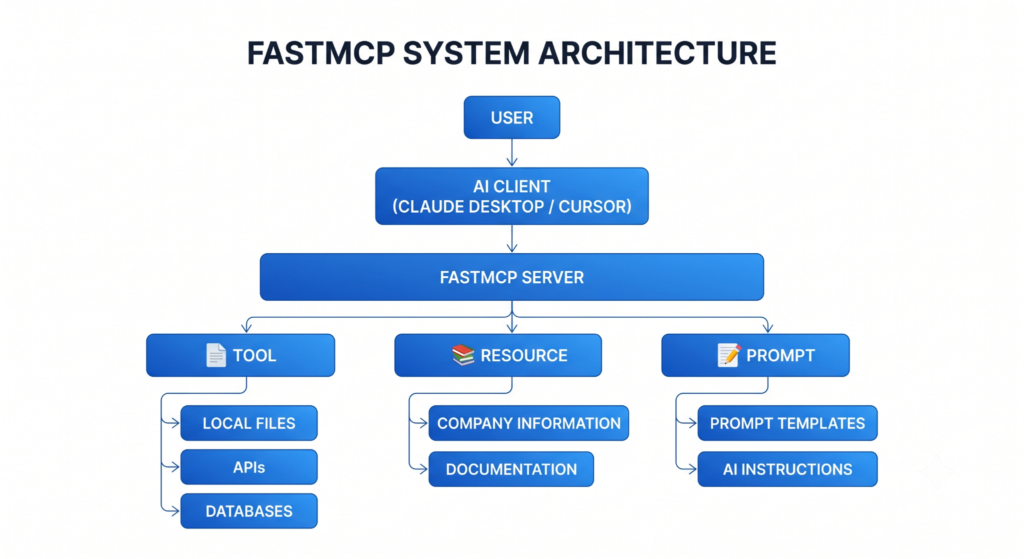
This server will expose three capabilities to AI applications:
Document Reader Tool
Allows AI applications to read local company documents.
Example:
“Read the Employee Handbook.”
The AI invokes our Tool, which retrieves the requested document and returns its contents.
Company Profile Resource
Provides structured company information such as:
- Company Name
- Industry
- Headquarters
- Mission Statement
Instead of executing code, this simply exposes contextual information that AI applications can retrieve whenever required.
AI Summarizer Prompt
Creates a reusable prompt template that summarizes retrieved documents into concise bullet points. Rather than rewriting the same instructions every time, AI applications can simply reuse this Prompt.
By the end of the tutorial, our architecture will look like this.
Project Architecture
What is FastMCP?
However, it is important that we make sure we understand what FastMCP is doing before we write our first line of code.
FastMCP is an open-source Python framework on top of the official Model Context Protocol SDK. The main purpose is to make it easy and user-friendly to develop MCP servers as compared to REST APIs with FastAPI. It is similar to FastAPI, which you should be familiar if you have worked with it. In FastAPI, a REST endpoint is simply a Python function decorated with the @app.get() annotation.
FastMCP has the same idea.
Using decorators like:
- @mcp.tool()
- @mcp.resource()
- @mcp.prompt()
Standard Python functions transform into capabilities for AI use.
FastMCP automatically does all the following in the background:
- Registers capabilities
- Generates JSON schemas
- Detects parameter types
- Communicates with MCP clients
Exposes all of them via the Model Context Protocol
Developers no longer need to concern themselves with protocol implementation, but are instead able to concentrate solely on developing useful functionality.
FastMCP vs the Raw MCP SDK
Although both frameworks ultimately create MCP servers, they target different developer experiences.
| Feature | Raw MCP SDK | FastMCP |
| Boilerplate Code | High | Minimal |
| Learning Curve | Moderate | Beginner Friendly |
| Decorator-Based Development | ❌ | ✅ |
| Automatic Tool Discovery | ❌ | ✅ |
| Automatic Schema Generation | ❌ | ✅ |
| Python Type Hints | Manual | Automatic |
| Development Speed | Slower | Faster |
| Production Ready | ✅ | ✅ |
The raw SDK provides complete control over the protocol, making it ideal for developers who need advanced customization. FastMCP, however, focuses on productivity. It removes much of the repetitive setup work, allowing developers to spend more time building AI functionality and less time configuring protocol internals. Think of it like this:
The official MCP SDK is the engine, while FastMCP is the steering wheel that makes it easy to drive.
Building Our First MCP Server
Now that we understand the theory behind FastMCP, it’s time to build our first MCP server.
We’ll begin by installing the framework and creating the server that will host all of our Tools, Resources, and Prompts.
Step 1 — Installing FastMCP
Before creating our MCP server, we first need to install FastMCP.
Open your terminal and run:
pip install fastmcpOnce the installation completes, verify that FastMCP has been installed correctly.
pip show fastmcpYou should see the installed version, package information, and installation directory.
For larger projects, it’s also recommended to save your dependencies.
pip freeze > requirements.txtThis makes it easier to recreate the same development environment later.
Step 2 — Creating the MCP Server
Every FastMCP project begins by creating a server object. Think of this object as the heart of your application. Every Tool, Resource, and Prompt that we’ll create throughout this tutorial will be registered with this server.
Create a file named server.py.
from fastmcp import FastMCP
# Create the MCP Server
mcp = FastMCP("Company Knowledge Server")

print("Server Created Successfully!")
Understanding the Code
Although this example contains only a few lines of code, an important process is already taking place.
The first line imports the FastMCP class, which provides everything needed to build an MCP server.
from fastmcp import FastMCPNext, we create an instance of the server.
mcp = FastMCP("Company Knowledge Server")The string passed to the constructor acts as the name of our MCP server. Whenever an MCP-compatible AI application connects to our server, this is the name it will identify.
At this point, our server doesn’t actually expose any capabilities. It simply creates the application that we’ll continue building throughout the rest of this tutorial.
Just like a FastAPI application starts with:
app = FastAPI()a FastMCP project starts with:
mcp app = FastAPI()Everything else will be added to this server.
Why Start with the Server First?
Before we expose any functionality, we need a central place where FastMCP can register it. As we continue building, our server will gradually evolve:
| Company Knowledge Server ↓ Document Reader Tool ↓ Company Profile Resource ↓ Document Summarizer Prompt ↓ Logging ↓ Progress Reporting ↓ Ready for AI Clients |
This incremental approach mirrors how real-world MCP servers are developed. Instead of building everything at once, developers begin with a basic server and gradually extend it with new capabilities.
Step 3 – Building Our First MCP Tool
Our server is now ready so now it is time to give it his first ability. Suppose you want to create an AI assistant for your organisation. An employee asks: “Do you have an employee handbook you can read?” This may seem like a simple ask, but there’s a catch.
Large Language Models (LLMs) cannot be used to directly access files on your local computer. They cannot jump into your file system, open PDFs or look for files on your folders. If the AI doesn’t have any tools, it’s unable to get that information.
This is where MCP Tools come in handy.
A Tool is an executable functionality that is provided by an MCP server. When an AI application requires to take an action, such as reading a document, querying a database, calling an API or running Python code, then it calls the relevant tool.
You don’t allow the AI to use all the features of your computer, you only allow the features you want the AI to use.
Our project will start with the development of a basic Document Reader Tool.
Creating the Document Reader Tool
@mcp.tool()
def read_document(filename: str) -> str:
    """
    Reads a text document and returns its contents.
    """

    try:

        with open(filename, "r") as file:
            return file.read()

    except Exception as e:

        return f"Error: {e}"
Understanding the Code
At first glance, this looks like an ordinary Python function.
It’s just a single decorator on top of it that makes it special.
@mcp.tool()This decorator is used below to indicate that the function should be exposed as an MCP Tool by FastMCP.
There are a number of things that FastMCP will do automatically under the hood. It registers the Tool with the server, creates its JSON schema, finds input parameters from the Python type hints and makes the Tool available to any connected MCP client.
Note that there is no manual schema definition.
Simply writing
| filename: str |
is enough for FastMCP to understand that this Tool expects a string as input.
In the function, we use regular Python to open the file requested and return its contents. The exception is caught and a readable error message is returned instead of the server crashing if the file is not present.
This one of the advantages of FastMCP is that you write normal python code and the framework will take care of the protocol implementation.
Testing the Tool
Before exposing our Tool to an AI application, it’s always a good idea to test it locally.
Let’s create a sample document.
with open("employee_handbook.txt", "w") as file:

    file.write("""
Employee Handbook

• Office Hours: 9 AM - 6 PM
• Work From Home: Monday & Friday
• Annual Leave: 20 Days
""")
Now call the function directly.
print(
    read_document(
        "employee_handbook.txt"
    )
)
Output
Employee Handbook

• Office Hours: 9 AM - 6 PM
• Work From Home: Monday & Friday
• Annual Leave: 20 Days
Although we’re calling the function like ordinary Python code, once the MCP server is running, AI applications such as Claude Desktop will invoke this Tool automatically whenever they need to retrieve document contents.
Step 4 – Creating a Resource
We’re able to have our server act. What if, however, the AI just wants information? Suppose that a user asks: Give a brief description of the company. There’s no doubt that reading a file every time will work, but that’s not necessarily the best design.
This information is fairly permanent. No calculations or business logic are involved, just simply available when the AI wants it. This is what Resources are all about. Resources are not Actions like Tools. Instead, they reveal structured information that can be retrieved by an AI application at any time if more context is required.
Examples include:
- Company information
- Product catalogs
- Configuration files
- Knowledge base articles
- Documentation
- Employee directories
Resources organize MCP servers, separating actions from information.
Creating the Company Profile Resource
Let’s expose some basic company information.
company_information = {

    "Company": "TechNova Solutions",

    "Industry": "Artificial Intelligence",

    "Headquarters": "Bangalore",

    "Mission":
        "Building AI solutions that simplify everyday work."

}

@mcp.resource(
    "company://profile"
)
def company_profile():

    return company_information
Understanding the Code
Unlike Tools, Resources require a unique URI.
@mcp.resource(
    "company://profile"
)
Think of this URI as the address of the Resource.
Whenever an AI application requests
| company://profile |
FastMCP automatically executes the function and returns the structured data. Notice that our function contains almost no logic. It simply returns a Python dictionary. FastMCP converts this into a format that MCP clients can understand. Resources are ideal whenever your server needs to expose information rather than perform actions.
Tool vs Resource
A common mistake beginners make is exposing everything as a Tool. Choosing the correct MCP primitive makes your server easier to understand and maintain.
| Use a Tool When… | Use a Resource When… |
| Reading files | Company information |
| Searching a database | Product catalog |
| Calling an API | Employee directory |
| Executing Python code | Documentation |
| Performing calculations | Configuration data |
As a general rule:
If it performs an action, use a Tool.
If it provides information, use a Resource.
Step 5 – Creating a Prompt
We have now created two of the three main components of our FastMCP. Our Tool performs actions. Our Resource offers information. The last part is the Prompt. Whether you have utilized the ChatGPT or Claude or another language model, you may have already had prompts such as:
Summarize this report. Explain this code. Make this document into Markdown. Write release notes. Many organisations will choose the same prompts over and over.
Instead of developers having to re-implement them each time, FastMCP enables the exposure of reusable prompt templates through MCP.
This helps to standardize the way in which each AI interaction occurs.
Creating a Document Summarizer Prompt
Let’s build a reusable prompt template.
@mcp.prompt()
def summarize_document(
    document: str
):

    return f"""
You are an expert technical writer.

Summarize the following document into concise bullet points.

Document:

{document}

"""
Understanding the Code
Just like Tools and Resources, Prompts are created using a decorator.
@mcp.prompt()
However, instead of executing an action or returning structured information, the function simply returns a carefully designed prompt template.
Whenever an AI application uses this Prompt, the document is inserted into the template before being sent to the language model.
This approach provides several benefits. First, users no longer need to remember complicated prompt instructions. Second, every summary follows the same format, improving consistency across teams. Finally, prompt templates become reusable assets that can be shared across multiple AI applications.
Our Company Knowledge MCP Server So Far
At this stage, our project has grown into a functional MCP server capable of exposing three different capabilities.
| Company Knowledge MCP Server │ ┌──────────────┼──────────────┐ ▼ ▼ ▼ Document Tool Company Resource AI Prompt │ │ │ ▼ ▼ ▼ Read Documents Company Profile Summarize Documents |
Although our server is still relatively simple, it already demonstrates the three building blocks that power almost every MCP application.
In real-world enterprise systems, developers may expose hundreds of Tools and Resources, but they all follow these same principles.
Why This Design Matters
Dividing up functionality into three sections: Tools, Resources, and Prompts isn’t just a great organizational strategy, but a major step in making AI applications much smarter.
As soon as an AI client joins an MCP server, it can identify all of the server’s features. It recognizes that every ability is different: The components that perform actions, which give context information, and those that provide reusable instructions.
The separation allows the language model to make more informed choices regarding the use of each capability when and how.
Our Company Knowledge MCP Server is now capable of performing meaningful tasks. Running the server and testing it with MCP Inspector, we’ll see how it is straightforward to expose everything we developed without having to do anything else, because that’s what AI applications need.
Step 6 – Running the MCP Server
We are now at a point where we have successfully created our three essentials of our Company Knowledge MCP Server:
- A Tool for reading company documents.
- A Resource for exposing company information.
- A Prompt to summarise documents.
However, these components are still just Python functions. They are not yet available for AI applications.
In order to be discovered by Claude Desktop, Cursor or any other MCP compatible client, we must start our MCP server.
Fortunately, FastMCP allows this to be very easy. Compared to the traditional servers, that need a lot of configuration, the capabilities that are registered with FastMCP can be exposed with just one command.
Running the Server
Once you’ve finished defining your Tools, Resources, and Prompts, add the following line at the bottom of your server.py file.
if __name__ == "__main__":
    mcp.run()
Now open a terminal and execute:
python server.pyUnderstanding the Code
The mcp.run() method initializes the MCP server and begins accepting requests from MCP compatible clients.
This might seem like a single call to a function, but there are a number of things happening automatically in the background.
On server start up, FastMCP will run a scan for all functions decorated with:
- @mcp.tool()
- @mcp.resource()
- @mcp.prompt()
All these parts are automatically registered to the server. FastMCP also creates the necessary JSON schemas, verifies the function signatures, and configures all the necessary elements for AI applications to locate and call your capabilities.
If it were not for FastMCP, this would have to be done by developers to a large extent. The best part of the framework is that they’re repetitive tasks and you don’t have to worry about them, you only deal with the logic of your application.
What Happens Behind the Scenes?
Although the startup process is almost invisible to the developer, the server performs several important steps before becoming available.
| python server.py │ ▼ FastMCP Starts Server │ ▼ Scans All Python Functions │ ▼ Finds Tools • Resources • Prompts │ ▼ Generates JSON Schemas │ ▼ Registers Capabilities │ ▼ Ready for MCP-Compatible Clients |
This automatic registration process is one of the reasons FastMCP is so beginner-friendly. Developers don’t need to manually tell the server what capabilities exist—the framework discovers them automatically.
Step 7 – Testing with MCP Inspector
Writing is only the first step in writing an MCP server. It is important to make sure that everything works as expected before integrating it with an AI application.
Visualize building a REST API. It’s unlikely that you would deploy it without testing first through a tool such as Postman or Swagger. The development of MCP is similar.
For Postman, MCP Inspector is provided in the MCP ecosystem. MCP Inspector is a graphical debugging tool to interact with the MCP servers directly. It automatically identifies available capabilities and allows you to perform them without the need for connecting to an AI application.
It’s like a testing playground, specially crafted for MCP servers.
With MCP Inspector you can:
- See all registered Tools
- Browse available Resources
- Inspect Prompt templates
- Execute Tools
- Validate responses
- Debug registration issues
Within the development of MCP it soon becomes one of most valuable tools.
Starting MCP Inspector
If Node.js is installed, launch MCP Inspector using:
npx @modelcontextprotocol/inspectorOnce started, Inspector opens a browser window where you can connect to your server.
Connecting to the Server
Configure Inspector using the following values.
Command
| python |
Arguments
| server.py |
Once connected, Inspector automatically queries the server and displays every capability that FastMCP discovered.
The interface should display something similar to:
| ✓ Tools read_document() ✓ Resources company://profile ✓ Prompts summarize_document() |
Notice that we never manually registered these capabilities inside Inspector.
FastMCP handled the entire discovery process automatically.
Testing the Document Reader Tool
Let’s try our first Tool.
Click on read_document() within MCP Inspector.
Provide the filename:
| employee_handbook.txt |
Click Run.
The server executes our Python function and returns:
| Employee Handbook • Office Hours: 9 AM – 6 PM • Work From Home: Monday & Friday • Annual Leave: 20 Days |
This is an example of one of the fundamental principles of MCP.
The AI model does not directly interact with the file.
Rather, it tells the MCP server to run the Tool. The Tool fetches the information and only the result is returned to the AI application.
This controlled interaction enhances security and flexibility.
Testing the Company Resource
Next, let’s test our Resource.
Select:
| company://profile |
Inspector immediately displays the structured company information.
{
    "Company": "TechNova Solutions",
    "Industry": "Artificial Intelligence",
    "Headquarters": "Bangalore",
    "Mission": "Building AI solutions that simplify everyday work."
}
Unlike the Tool, the Resource doesn’t execute any business logic. It simply exposes structured information that AI applications can retrieve whenever they need additional context.
Testing the Prompt
Finally, inspect the Prompt we created earlier.
Select:
| summarize_document() |
Inspector displays the complete prompt template exactly as it will be sent to the language model.
This is particularly useful when designing prompt libraries because developers can review and refine prompts without repeatedly opening Claude Desktop or another AI client.
Why Use MCP Inspector?
With a growing MCP server, testing each Tool and Resource will be cumbersome and inefficient.
To simplify the development process, MCP Inspector has helped you develop in a centralized environment that allows you to validate all the capabilities before deployment.
It gives the developers the ability to:
- Verify Tool registration.
- Test Resources independently.
- Preview Prompt templates.
- Check automatically-generated schemas.
- Debug server configuration.
Verify answers before connecting with the AI client.
For the majority of developers, MCP Inspector is a development tool indispensable.
Step 8 – Improving Our Tool with the Context Object
Our Document Reader Tool is pretty good, but it’s still very basic. Now visualize being able to extend it to handle hundreds of documents, hundreds of large reports that contain information you want to extract, or thousands of files to be indexed.
Some of these operations may take several seconds—or even minutes—to complete.
If the Tool doesn’t say anything during this period, then the users might assume that the server has frozen.
The Context Object is the solution to this problem that FastMCP offers.
The Context Object provides extra functionality to your Tool when it is running. The Tool can now provide feedback to the connected AI application, including status updates, progress reports, and even seeking help from the language model itself.
This makes simple Tools much more rich and ready for production.
Adding Logging
Let’s improve our Document Reader Tool by sending a log message whenever a document is opened.
from fastmcp import Context


@mcp.tool()
async def read_document(
    filename: str,
    ctx: Context
):

    await ctx.info(
        f"Reading {filename}..."
    )

    with open(filename, "r") as file:
        return file.read()
Understanding the Code
The only new addition is the Context parameter.
| ctx: Context |
FastMCP automatically injects this object whenever the Tool is executed.
Using:
| await ctx.info(…) |
the Tool sends structured log messages back to the MCP client.
Instead of silently processing the request, the server now reports what it’s doing.
These logs become incredibly useful when debugging production systems or monitoring long-running tasks.
Reporting Progress
Logging tells users what the Tool is doing. Progress reporting tells them how much work remains. Imagine processing hundreds of files. Rather than waiting until the operation finishes, we can continuously update the client.
import asyncio

from fastmcp import Context

@mcp.tool()
async def process_documents(ctx: Context):

    for i in range(10):

        await ctx.report_progress(
            progress=i + 1,
            total=10
        )

        await asyncio.sleep(1)

    return "Processing Complete!"
Understanding the Code
The report_progress() method continuously informs the client about task completion.
Instead of waiting for the final response, users receive live progress updates such as:
10%
20%
30%
…
100%
Progress reporting significantly improves the user experience for long-running operations such as document indexing, data imports, OCR processing, and vector embedding generation.
FastMCP 2.x Features You Should Know
You have created a full-fledged MCP server that can expose tools, resources and prompts. This is sufficient for many personal projects.
However, as applications expand, you might have to link several MCP servers, reuse existing APIs or structure larger codebases into smaller modules. This is where the newer features added in FastMCP 2.x really shine.
FastMCP 2.x does not change the way you build your MCP servers, instead, it offers large-scale applications easier to maintain, deploy and extend.
Let’s take a closer look at three of the most important additions.
1. Server Composition
When projects become larger, it becomes increasingly difficult to have all your Tools, Resources and Prompts in one Python file.
Suppose you develop an enterprise AI assistant.
It might expose:
- HR Tools
- Finance Tools
- CRM Tools
- Database Tools
- Internal Documentation
- Prompt Libraries
If you combined all of these in a single file, then it would be overwhelming.
Server Composition overcomes this problem by enabling developers to partition the capabilities of the MCP into multiple modules, and then bundle them into a single MCP server.
Rather than setting up your project in this manner:
server.py
| ├── Tool 1 ├── Tool 2 ├── Tool 3 ├── Resource 1 ├── Resource 2 ├── Prompt 1 └── Prompt 2 |
You can organize it like this:
| company_mcp/ │ ├── server.py │ ├── tools/ │ documents.py │ database.py │ github.py │ ├── resources/ │ company.py │ employee.py │ └── prompts/ summarize.py code_review.py |
Each module is responsible for a specific part of the application, making the project easier to understand and maintain.
This approach becomes especially useful when multiple developers are working on the same MCP server.
2. Proxying
One of the most exciting features introduced in FastMCP 2.x is Server Proxying.
Imagine your organization already has multiple MCP servers.
For example:
- HR MCP Server
- Finance MCP Server
- IT Support MCP Server
- Documentation MCP Server
Without proxying, an AI application would need to connect to every server individually. Instead, FastMCP allows one server to act as a gateway. The architecture becomes:
| AI Client │ ▼ Company Gateway MCP Server │ │ │ ▼ ▼ ▼ HR Server Finance Documentation Server Server |
The AI application communicates with only one server.
Internally, that server forwards requests to the appropriate backend service.
This simplifies deployment, improves security, and allows organizations to manage access through a single entry point.
3. OpenAPI Import
Many organizations already have REST APIs powering their applications.
For example:
- CRM APIs
- Inventory APIs
- HR Systems
- Payment Services
- Analytics Platforms
Rewriting all of these APIs as MCP Tools would require significant development effort.
FastMCP solves this through OpenAPI Import.
Instead of manually recreating every endpoint, developers can import an existing OpenAPI specification and automatically expose those endpoints as MCP Tools.
The workflow looks like this.
| Existing REST API │ OpenAPI Specification │ ▼ FastMCP Import │ ▼ MCP Server │ ▼ AI Applications |
This dramatically accelerates AI adoption because existing enterprise APIs can immediately become available to AI agents without extensive redevelopment.
Best Practices for Building FastMCP Servers
Although FastMCP makes MCP development remarkably simple, following a few best practices will make your applications more scalable and easier to maintain.
Keep Tools Focused
Each Tool should perform one clearly defined task.
Good examples include:
- Read Document
- Search Database
- Create Ticket
- Generate Report
Avoid creating large Tools that attempt to perform multiple unrelated operations.
Smaller Tools are easier for both developers and AI models to understand.
Use Resources for Static Information
Not every piece of information should be exposed as a Tool.
If the data rarely changes and simply needs to be retrieved, use a Resource instead.
Examples include:
- Company Profile
- Product Catalog
- Employee Directory
- Internal Documentation
Keeping static information separate from executable actions results in cleaner server design.
Leverage Python Type Hints
FastMCP automatically generates schemas from Python type hints.
Instead of writing:
| def search(query): |
prefer:
| def search(query: str) -> str: |
Clear type hints improve validation, documentation, and interoperability with AI clients.
Organize Larger Projects into Modules
As your project grows, split your Tools, Resources, and Prompts into separate directories.
This keeps the codebase organized and allows multiple developers to work on different components simultaneously.
Use Logging and Progress Updates
Users appreciate knowing what the server is doing.
For long-running operations such as document indexing or data migration, use the Context Object to report status updates and progress. Small additions like these significantly improve the user experience.
Final Project Structure
By the end of this tutorial, our Company Knowledge MCP Server looks like this.
company_mcp/
| │ ├── server.py ├── requirements.txt ├── README.md │ ├── data/ │ employee_handbook.txt │ ├── tools/ │ document_reader.py │ ├── resources/ │ company_profile.py │ └── prompts/ summarize.py |
Although this is a relatively small project, it follows the same architectural principles used by much larger production systems.
Conclusion
Throughout this tutorial, we’ve built a complete Company Knowledge MCP Server using FastMCP. Starting from a simple server object, we gradually introduced the three core building blocks of the Model Context Protocol—Tools, Resources, and Prompts—and learned how each one serves a distinct purpose.
Rather than creating isolated examples, we developed a single practical project that demonstrated how AI applications can safely read documents, retrieve structured company information, and reuse standardized prompt templates. Along the way, we explored how FastMCP automatically handles capability registration, schema generation, and communication with MCP-compatible clients, allowing us to focus on writing business logic instead of protocol implementation.
We also looked beyond the basics by introducing the Context Object for logging and progress reporting, testing our server using MCP Inspector, and exploring enterprise-oriented features such as Server Composition, Proxying, and OpenAPI Import. Together, these capabilities make FastMCP suitable not only for learning MCP but also for building scalable, production-ready AI integrations.
As AI agents continue to evolve, standards like MCP will play an increasingly important role in connecting language models with external systems. FastMCP lowers the barrier to entry by providing a clean, Pythonic development experience while remaining fully compatible with the official Model Context Protocol.
If you’re just beginning your journey into AI agent development, building an MCP server with FastMCP is one of the best ways to understand how modern AI applications interact with the real world. Once you’re comfortable with the concepts covered in this tutorial, you can extend your server with databases, APIs, cloud storage, authentication, and countless other capabilities to create intelligent, production-ready AI systems.
Frequently Asked Questions
1. What is FastMCP?
FastMCP is a Python framework that simplifies the development of Model Context Protocol (MCP) servers. It provides a decorator-based interface for creating Tools, Resources, and Prompts while automatically handling schema generation and protocol communication.
2. How is FastMCP different from the official MCP SDK?
The official MCP SDK provides low-level access to the protocol and requires more boilerplate code. FastMCP is built on top of the SDK and abstracts much of this complexity, allowing developers to build MCP servers using concise Python code.
3. What is the difference between a Tool and a Resource?
A Tool performs an action, such as reading a file, querying a database, or calling an API. A Resource simply exposes structured information, such as documentation, company details, or product catalogs, without executing business logic.
4. Can I use FastMCP with Claude Desktop and Cursor?
Yes. FastMCP servers are fully compatible with MCP-enabled applications such as Claude Desktop, Cursor, Windsurf, and other AI clients that support the Model Context Protocol.
5. Is FastMCP suitable for production applications?
Absolutely. FastMCP includes features such as automatic schema generation, server composition, proxying, and OpenAPI integration, making it suitable for both small personal projects and enterprise-grade AI systems.
6. What should I build after learning FastMCP?
Once you’re comfortable with the basics, you can extend your MCP server by integrating external APIs, vector databases, SQL databases, cloud storage, GitHub repositories, internal documentation, or authentication systems. These additions allow AI agents to interact with real-world data and services securely.
Read other MCP articles
MCP vs Function Calling: Key Differences Explained (2026)
What Is Model Context Protocol (MCP) – A Complete Guide for AI Developers
MCP Primitives Explained: Tools, Resources, and Prompts With Real Examples
How to Build an MCP Server in Python (Step-by-Step)
Popular Posts
- Build and Evaluate a RAG Pipeline with RAGAS, LangChain, FAISS, and Groq (Step-by-Step Guide)
- Loop Engineering Explained: From Prompt Engineering to Self-Prompting AI Agents
- Build Your First MCP Server with FastMCP: A Complete Python Tutorial
- MCP vs Function Calling: Key Differences Explained (2026)
- What Is Model Context Protocol (MCP) – A Complete Guide for AI Developers